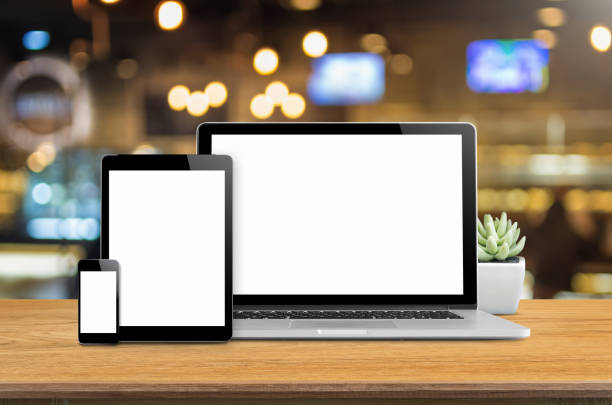
With each passing year, the iPad becomes more powerful and more versatile. What was once seen as something between a smartphone and a computer has evolved into a full-fledged productivity tool. By 2025, many users are wondering if an iPad can replace a laptop? The answer is yes, especially if you own a recent iPad Pro or iPad Air. Let’s look at what to configure and which accessories you need to make it happen.
Who Should Use an iPad as a Laptop?
Let’s start with the basics. If portability and compactness matter to you, the iPad is a perfect solution. It’s perfect for students, digital artists, marketers, entrepreneurs, and anyone who just wants to play games at Bizzo Casino or watch a Netflix movie on the go.
The iPad’s touchscreen allows for interactions you won’t get on a laptop. Apple’s tablet-laptop hybrid is especially popular in creative industries thanks to the built-in camera, you can shoot and edit content directly on the device. It’s far more convenient than taking photos on an iPhone, editing them on a laptop, and transferring them back to your phone for posting to stories.
That said, the iPad won’t replace a laptop for everyone. If your workflow relies on software designed specifically for macOS or Windows, like accounting platforms, CAD tools, or architectural design programs, an iPad may not cut it. These apps are often unavailable on iPadOS or come with limitations. The same goes for users who work with Blender, full-scale programming, or massive datasets. Finance professionals, analysts, and researchers handling huge Excel files, databases, or servers generally still prefer a traditional laptop.
How to Set Up Your iPad Like a Laptop
You can turn your iPad into a laptop-style workspace in three steps:
Customize Keyboard Shortcuts and Gestures
Streamline navigation and boost productivity with custom gestures and keyboard shortcuts. In addition to built-in options, you can create new gestures tailored for trackpad or mouse use. With just a tap or swipe, you can activate Slide Over mode, switch between apps, and much more.
Create Shortcuts (Quick Commands)
Observe how you use your iPad throughout the day, then assign shortcuts for your most frequent actions. For instance, you can create a one-tap shortcut to enable a VPN, get directions to the nearest gas station, or change multiple iPad settings when switching from home to office.
Master Multitasking Modes
Split View, Slide Over, and Stage Manager can seriously enhance your workflow.
- Split View lets you run two apps side by side.
- Slide Over allows you to keep one app full-screen while another floats at the edge.
- Stage Manager gives you window-like control to arrange apps however you want.
Explore these modes and choose the one that fits your style best.
Accessories That Turn an iPad Into a Laptop
So yes, an iPad can replace a laptop with the right accessories from Apple or trusted third-party brands. A proper list of devices depends on your use case:
Smart Keyboard or Magic Keyboard
Magnetically attached, these work as both a case and a stand. Open them up, and you’ve got a full keyboard for typing — no more on-screen keys blocking your display.
Trackpad
Lets you move a cursor like on a laptop and supports multitouch gestures. Pressure sensitivity makes it perfect for digital drawing, too. It’s especially convenient for lap use or while traveling.
Mouse
Perfect for precision work or long sessions in Excel, graphics editing, or coding. Mice are more ergonomic for extended use and offer pinpoint control.
Apple Pencil
Essential for artists, note-takers, and anyone working with PDFs or graphics. The stylus offers precise selection, commenting, and editing — far better than using your finger.
USB-C Hubs
These allow you to connect flash drives, HDMI displays, and other peripherals. A must-have for pro-level multitasking.
Can You Connect an iPad to a Laptop?
Can the iPad Pro be used as a laptop? Absolutely — in fact, many advanced users already do. Professionals often use the iPad as a graphics tablet or second display for their Mac or PC. This extra screen real estate is especially useful for work involving design, video editing, or spreadsheets.
And multitasking becomes easier: you can render video on your Mac while chatting or managing emails on your iPad. Best of all, connecting doesn’t require cables. Just use Sidecar (for macOS) or Spacedesk (for Windows) to sync your devices.
Final Thoughts: iPad vs. Laptop
Now you know exactly how to turn your iPad into a laptop. With just about an hour of setup — configuring shortcuts, gestures, and productivity tools — you’ll enjoy a seamless daily workflow.
In professional environments, the iPad Pro is often the go-to laptop replacement. Devices powered by the M4 or M3 chips offer performance comparable to traditional computers. And if you want a large screen for editing documents, writing, creating presentations, gaming, or browsing, other models like the iPad Air (13” or 11”, M3 chip) and the iPad A16 are also great.