If you’ve ever tried to convert PDF to PSD with layers, you know it’s not as easy as it sounds. Sometimes the conversion flattens everything. Sometimes fonts disappear. And other times, the file simply refuses to load.
That’s why I sat down with my own files – real reports, invoices, and design-heavy brochures – and ran them through the most common tools people actually use and looked at what came out the other side.
I tested both free tools and paid software side by side. The goal? Find out which tool is the best option for turning PDF to PSD with layers while keeping the process as smooth as possible.
Some tools were surprisingly good. Others… yeah, not so much.
I listed them from the worst to the best, along with the nitty-gritty of each test so you can figure out which one actually works for your files. Let’s get into it.
My Testing Setup
Most of the testing I did on my MacBook Pro 14-inch, the one with the M1 Pro, 16 gigs of RAM, and a 512 SSD. Pretty smooth overall. I also tried a few runs on my Windows 11 PC, Ryzen 7 with 32 gigs and an RTX 3060, just to see if results were any different.
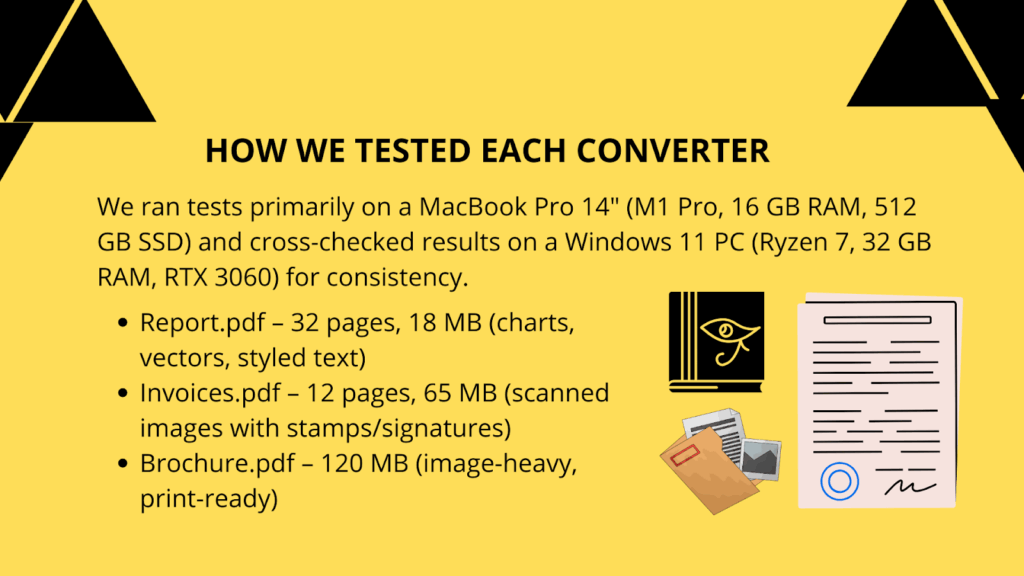
- Files used:
- Report.pdf – 32 pages, 18 MB, charts, vector graphics, styled text.
- Invoices.pdf – 12 pages, 65 MB scanned images with stamps/signatures.
- Brochure.pdf – 1 file, 120 MB, image-heavy print-ready design.
- Checks performed: After every conversion, I opened the PSD in Photoshop 2024 to check if:
- Layers were preserved.
- Text stayed editable.
- Vectors stayed vectors.
- File size stayed manageable.
- The software handled multi-page PDFs smoothly.
#8 – Random Free Online Converters
Price: Free (with limits)
Batch Support: No
Layers Preserved: Rarely
My Experience:
Tried three different free “convert PDF to PSD online” sites. On the 18 MB report, everything flattened into one raster layer – no editable text. The 65 MB invoice file failed halfway through with a “file too large” error. The 120 MB brochure didn’t even upload (most of these tools cap at 50 MB).
On my MacBook Pro, one of the converters even froze Safari for about 15 seconds. Clearly not optimized for large files.
Verdict: Fine if you have a one-page flyer. For anything beyond that, skip it.
#7 – ImageMagick
Price: Free
Batch Support: Yes, through CLI scripts
Layers Preserved: No
My Experience:
Installed it via Homebrew on my Mac (command line setup). Ran the Report.pdf through with the convert -density 300 Report.pdf output.psd command. It spit out a PSD, but everything was rasterized – editable text gone.
The Invoices.pdf converted, but the output PSD ballooned to 210 MB (from the original 65 MB). When I tried the Brochure.pdf, my CPU usage spiked above 90% and the fans screamed. It eventually worked, but the PSD was a flat 1.2 GB monster file.
Verdict: Works if you love automation, but don’t expect layered PSDs or reasonable file sizes.
#6 – GIMP
Price: Free (Desktop)
Batch Support: Limited (plugins/scripts)
Layers Preserved: Partially
My Experience:
Opened the Report.pdf in GIMP. It asked me for DPI (defaulted to 100, I set it to 300). Imported fine, but all text became rasterized. Each page came in as one rasterized layer. The Invoices.pdf worked but had washed-out colors compared to the original. The Brochure.pdf opened but lagged badly with memory usage shot past 10 GB on my Mac.
However, export to PSD went fine, but when I pulled it up in Photoshop, all I really got were flattened image chunks instead of proper layers.
Verdict: It’s totally okay if you just need a free offline option, but I wouldn’t count on it for clean and professional PSD files.
#5 – Adobe Photoshop
Price: Paid (part of Creative Cloud)
Batch Support: No
Layers Preserved: Almost none
My Experience:
I opened the Report.pdf directly in Photoshop 2024. It gave me a dialog box to pick which page to open, which means no true multi-page import. The page I opened looked correct, but all text and charts were rasterized. No editable vectors.
With the Invoices.pdf, each page had to be opened separately – painful. The Brochure.pdf loaded one page at a time, but my RAM spiked to 12 GB usage.
Verdict: Ironically, the tool everyone assumes would be best for PDF to PSD is one of the weakest. Works only for single pages where you don’t care about layers.
#4 – Affinity Photo
Price: $69.99 one-time
Batch Support: Limited
Layers Preserved: Some
My Experience:
Imported the Report.pdf in Affinity Photo (v2). Some charts remained editable vector layers, and a few text blocks were editable. But fonts didn’t always map correctly, and some shapes were flattened. The Invoices.pdf opened fine, though OCR wasn’t available, so stamps stayed rasterized. The Brochure.pdf (120 MB) loaded after a long wait – my CPU hit 80% – and exported to PSD with layers, though I had to clean up missing fonts.
File sizes stayed reasonable – the 18 MB report exported to a 120 MB PSD, compared to ImageMagick’s 500 MB+ outputs.
Verdict: Not perfect, but if you already own Affinity, it’s a decent mid-range tool for PDF to PSD conversion with some real layer preservation.
#3 – Photopea
Price: Free, $5 per month (ad-free)
Batch Support: Limited
Layers Preserved: Yes, including text and shapes
My Experience:
I opened the Report.pdf in Photopea (running in Chrome on macOS). It surprised me – the charts and shapes came in as vector layers, text stayed editable, and images stayed sharp. Exactly what I wanted.
On the Invoices.pdf, it handled the stamps and logos well, but since they were raster in the original, they stayed raster. Text recognition wasn’t built-in (no OCR). For the Brochure.pdf (120 MB), it nearly froze my browser. Chrome memory shot up past 3 GB, and it took 2-3 minutes to load. Once opened, layers were intact, but scrolling lagged badly.
Exporting to PSD was super easy and when I opened it in Photoshop after it, the layers were still editable. Ads are the only big annoyance – sidebar and banner ads crowd the workspace unless you pay.
Verdict: Easily the best free online editor for PDF to PSD conversion with layers. Great for medium files, but struggles on very large PDFs.
#2 – Adobe Illustrator
Price: Paid, $22.99 per month standalone – Creative Cloud
Batch Support: No
Layers Preserved: Yes (most of the time)
My Experience:
Illustrator is the professional option. On the Report.pdf, it opened cleanly, preserving vectors and editable text. When I exported to PSD, layers carried over nicely into Photoshop.
The Invoices.pdf triggered missing font warnings, but once I replaced them, everything worked. The Brochure.pdf (120 MB) opened after a 45-second load – not fast, but manageable. Exporting to PSD took another minute, but the final file was layered and usable.
The big limitation? You can only open one PDF at a time, no batch imports. And it’s a subscription, so it adds up fast.
Verdict: Rock solid for professional results. If you already have Creative Cloud, this is the most reliable paid tool for PDF to PSD with layers.
#1 – iLovePDF2
Price: 100% Free
Batch Support: Yes
Layers Preserved: Yes (plus extra options)
My Experience:
This one shocked me the most. I uploaded the Report.pdf (18 MB) into i Love PDF 2, and not only did it convert pages into PSD layers, it also gave me the option to convert with OCR or without. Text stayed editable, charts came out vector, and images were crisp.
On the Invoices.pdf (65 MB scans), the OCR option turned the text searchable – huge plus. It also let me adjust margins and even pick which pages I wanted to convert. Batch support worked – I tested with three different invoice files at once and it churned out PSDs without issue.
The Brochure.pdf (120 MB) did process slower – about 1 minute but it completed without errors. The output PSD opened in Photoshop with intact layers. File size was reasonable too (around 450 MB).
What stood out most:
- Cloud import/export: Direct connection to Google Drive and Dropbox.
- Batch jobs: Multiple PDFs converted in one go.
- Free with no hidden limits: Unlike other free tools, it didn’t push me to upgrade.
Downsides? The interface feels clunky, ads show up, and it’s online-only (no mobile or desktop app). But honestly, those are minor compared to what it offers.
Verdict: iLovePDF2 is way better than most online tools. For a 100% free option with batch, OCR, and cloud support, it’s the clear winner for PDF to PSD with layers.
Ranked Comparison Table
| Rank | Tool | Price | Batch Support | Layers Preserved | Review (Short) |
| 8 | Random Free Online | Free (limited) | No | Rarely | Flat PSDs, size limits, unreliable. |
| 7 | ImageMagick | Free | Yes (CLI) | No | Powerful CLI tool, but only raster output. |
| 6 | GIMP | Free | Limited | Partial | Free desktop app, but heavy rasterization. |
| 5 | Adobe Photoshop | Paid ($22.99/mo) | No | Rarely | Flattens most files, one-page import only. |
| 4 | Affinity Photo | $69.99 one-time | Limited | Some | Affordable, but mixed results on fonts/layers. |
| 3 | Photopea | Free (ads) | Limited | Yes | Best online free editor, struggles on large files. |
| 2 | Adobe Illustrator | Paid ($22.99/mo) | No | Yes | Professional results, reliable layers. |
| 1 | iLovePDF2 | Free | Yes | Yes | The best free tool, OCR, batch, cloud support. |
Final Thoughts
After putting my files through all 8 tools, it’s clear not all PDF to PSD converters are built equal. Most free online tools flatten everything. Photoshop – ironically isn’t great for this workflow. Illustrator is excellent if you already pay for Creative Cloud, but the surprise star was iLovePDF2.
It gave me layered PSDs, OCR options, batch processing, and cloud support without any catches. Sure, it’s a little slow on very large files and the UI could use polish, but for something free and unlimited, it outperforms even some paid software.
So if you’re serious about converting PDF to PSD with layers, I’d rank iLovePDF2 at the top, with Illustrator and Photopea as strong backups depending on your budget and needs.